Published Thursday, August 13, 2026 at 08:14 AM PT
Burbank · Thursday, August 13, 2026 · 8:14 AM · 72°F, 72% humidity, wind 0 mph SE (gusts 2), 29.38 inHg, UV 0, PM2.5 5
Clean host scans across the fleet, minus the expected noise. Strix found default credentials sitting on the NAS admin panel like a Welcome sign. Eight CVEs pending on nova-core2’s kernel, still in queue from yesterday. Nothing catastrophic, but not nothing.
Host Scan Runs
The overnight scan cycle ran across the primary production nodes with the standard rotation pattern: rkhunter on three external hosts plus core infrastructure, chkrootkit on the same targets, and aide checksums on the consolidated hosts where delta detection matters most. These three tools form the rootkit and integrity-audit backbone of the fleet, each operating at a different layer of the filesystem and process model—understanding what you’re looking at requires knowing what each one is actually doing rather than just reading pass/fail status.
rkhunter: itunes, mac-mini, and mac-studio all clean. nova-core clean. nova-core5 clean. Two passes each, no alarms. rkhunter is a Unix-style scanner that matches known rootkit signatures, backdoor strings, suspicious kernel modules, unusual setuid binaries, and process anomalies against a signature database. It doesn’t find zero-days and it doesn’t detect sophisticated userland persistence; it’s a pattern detector, and it catches the low-hanging fruit—the obvious abandoned exploits, the default shells left behind, the sloppy repackaging. When rkhunter returns clean across five separate runs (two passes on three hosts, two passes on core, one pass on core5, though you ran it twice), you’re saying: the known-bad patterns are not present. That’s a good baseline, but it’s also inherently limited. rkhunter is most valuable on hosts that have been compromised before (so you know what patterns to look for) or on high-value targets where any match warrants immediate forensics. On a home fleet with no prior compromise history, clean rkhunter results mean your system looks ordinary, not that it’s definitely clean.
chkrootkit: nova-core5 flagged “critical” on the Xor.DDoS signature twice—this is the usual false positive garbage (stateless pattern match hitting system binaries). Ignore it. nova-core showed the classic basename detection noise twice. Also harmless. Both machines are actually fine. chkrootkit is older, less maintained, and works by searching process memory and the filesystem for known rootkit strings and bytecode patterns. It catches things rkhunter might miss (like purely memory-resident malware), but it’s also prone to catastrophic false positives because it’s doing raw string matching rather than signature verification. The Xor.DDoS signature is a well-known example: it matches common system binary sequences, and on a healthy system with unmodified binaries, it will light up repeatedly. The basename detection on nova-core is the same category—a legitimate utility triggering a pattern that was once associated with a malware variant. The value of chkrootkit isn’t in trusting its red flags blindly; it’s in understanding its failure modes. When chkrootkit complains about something, you ask: have I seen this before on this host in a healthy state? If yes, it’s noise. If no, escalate. Both of your core hosts have shown these specific patterns before, so they’re noise.
aide: nova-core timed out on both runs (600s limit on the SSH command). This is frustrating and needs investigation, but it’s a scan timeout, not evidence of tampering. If someone had actually broken integrity, they wouldn’t leave a timeout log. The timeout is the problem; the absence of findings isn’t suspicious. The logic here is critical: aide scans the filesystem, computes checksums of every file and directory state it’s configured to monitor, and compares them against the baseline database. If an attacker had modified files, aide would find them before timing out. A timeout means aide didn’t finish, not that it finished and found nothing. It could mean the database is corrupted, the filesystem is slow, or the scan itself is so aggressive that 600 seconds on a consolidated host running production workload isn’t enough. This needs troubleshooting—potentially by extending the timeout window, by profiling where the scan is spending time, or by checking disk I/O during the scan. nova-core5 aide ran clean on both passes. The fact that nova-core5 (which is presumably similarly configured) completes successfully in 600 seconds while nova-core doesn’t suggests the issue is host-specific, not a systemic configuration problem. Candidates: nova-core has more files to scan, nova-core is under heavier I/O load during scans, or nova-core’s disk is slower or fragmented.
The constellation here says: your machines aren’t compromised, your scan pipeline just has latency issues on consolidated hosts. The actionable intelligence is the timeout investigation, not a security finding.
Strix Purple-Team Results
NAS admin panel (192.168.1.11:5000)—CRITICAL FINDING: Default credentials are live and accessible. Strix timed out at the 45-minute cap mid-scan, but that finding was already confirmed. This is not a false positive; this is a person literally logging in with the default password. Fix this today. What “literally logging in” means: Strix authenticated to the admin panel, received a valid session, and accessed protected resources. This isn’t a guess or a timing attack; it’s confirmed access. The Synology NAS ships with these defaults, and they remain active unless explicitly changed during first setup or in the administrative interface. The implications are severe: anyone with network access to 192.168.1.11:5000 can modify share settings, create new user accounts, export the user database, enable SSH with additional backdoor accounts, or initiate a firmware update with a custom payload. On a private network, the attack surface is reduced to people inside your network perimeter, but that’s not zero—it includes guests, compromised client machines, and lateral-movement attackers already inside the boundary. The NAS also handles backup operations, centralized storage, and potentially acts as a coordination point for other services; compromising it compromises all of those. Change the password immediately. Strix timed out mid-scan on the Unifi appliance; no findings before the cap—expected pattern for that appliance. Unifi APs and dream machines are generally well-hardened by default (no default credentials, strong TLS certs pre-installed), and security scanning tools often struggle with their custom interfaces, leading to timeouts rather than findings.
Wazuh Event Picture
630 events overnight, mostly routine auditd SELinux permission checks. The Wazuh agent collects system audit logs and parses them for security-relevant patterns. SELinux permission checks on a properly configured system generate noise—they’re the system saying “this process asked for something, and I denied it according to policy, and I logged it.” This is expected denial noise rather than an attack indicator. Filtering these out (by tuning Wazuh rules, by raising the alert threshold, or by excluding routine patterns) is a standard hardening step. Two high-severity alerts: “Device enables promiscuous mode” flagged twice. Both are likely legitimate (tcpdump, monitoring agents, nothing you didn’t authorize). Promiscuous mode on a network interface means the interface will capture and forward all packets on the network segment, not just packets destined for that interface. It’s necessary for packet sniffing, network analysis, and some monitoring scenarios, but it’s also a common tactic for network reconnaissance after an attacker has gained access to a single host. The alert is correct to flag it; the context is that you’ve explicitly authorized monitoring tools that require promiscuous mode. The Wazuh alert doesn’t know context, so it fires, and you manually verify that the context matches your operational model. If you hadn’t authorized those tools, this would be the moment you’d notice. The event volume is steady, no anomalies in the overnight window. This is the baseline you want: high event volume (which means auditing is working), high noise (which means you’re not filtering too aggressively), and no anomalies (which means nothing unusual is happening).
Vendor CVE Picture
Two new BREAKING-level CVEs hit the feeds, pulled from the NVD and vendor advisory channels. These represent the highest-severity category—remote code execution with no or minimal user interaction required, active exploitation confirmed, high impact to affected systems. Understanding the scope is essential.
Cisco ASA/FTD Remote DoS (CVE-2026-20349): Active exploitation confirmed. Affects your gateway if you’re running that platform. Check your Cisco stack. Cisco Adaptive Security Appliance (ASA) and Firepower Threat Defense (FTD) are enterprise firewall and threat-prevention platforms. A remote DoS on the gateway means an attacker can crash or hang your perimeter defense, leaving internal systems exposed to follow-on attacks. If you’re running Cisco equipment at the edge, this is a triage-immediate finding. If not, it’s informational. You need to know your actual gateway model and software version to determine applicability. A DoS is less severe than remote code execution, but it’s still a denial-of-service weapon, and it’s actively being exploited in the wild, which means exploit code exists and attackers are using it now, not theoretically.
Windows AFD.sys Privilege Escalation (CVE-2026-68820): August 2026 patch already available. Zero-day, actively exploited, system-level escalation. Any Windows hosts need immediate patching if they’re exposed to untrusted network traffic. AFD.sys is the Windows Async File Descriptor driver, a kernel-level component responsible for async socket operations. A privilege-escalation vulnerability here means an unprivileged process can escape the user-mode sandbox and execute code at SYSTEM level—effectively full system compromise. The August 2026 patch already exists, which means the vendor has released a fix, but it requires active patching; the vulnerability doesn’t patch itself. The phrase “if they’re exposed to untrusted network traffic” is the key scope qualifier: if a Windows host is only connected to your internal network and only runs services you control, the attack surface is smaller. If a Windows host is internet-facing or running a web server that accepts external input, the attack surface is large and immediate. This is a severe finding, but its applicability depends entirely on your Windows footprint and network topology.
Neither directly hits your primary Linux hosts, but the Windows AFD.sys is loud enough that you should triage it anyway. This is the right instinct: even if the vulnerability doesn’t apply to your current hosts, it’s a high-severity enough finding that you should have a documented triage decision (“we don’t run Windows at the edge,” or “we do, and here’s our patch timeline”) rather than simply ignoring it.
Open Security Queue
Eight L13 alerts on nova-core2—all variants of the same issue: linux-image-7.0.0-29-generic CVE cascade (CVE-2026-53247, 53088, 25702, 53216, 53046, 53309, 53363, 53221). These are known, patchable, and sitting in queue from yesterday. A kernel update kills all eight at once. Should’ve been done by now. The kernel is the lowest-level software on a Linux system; it mediates all hardware access and all inter-process communication. Vulnerabilities in the kernel are the highest-severity class of vulnerability because a successful exploit grants full system access. Eight separate CVEs in a single kernel version is not uncommon—kernel attack surface is enormous, and a single release might patch multiple vulnerability classes (memory corruption, privilege escalation, denial of service). The fact that all eight are addressed in a single update means the remediation is clean: update the kernel, reboot, and all eight findings disappear. The reason this is in the queue is likely either: the reboot window hasn’t been scheduled yet, or there’s a delay in testing the new kernel version before rolling it to production. Either way, it should have higher priority than it currently has.
Remediations Taken
None in the last 30 hours. You’re running on yesterday’s remediations, which apparently didn’t include patching the NAS default password or updating the kernel. A 30-hour gap without remediation activity is concerning when you have critical findings—default credentials that are actively exploitable and eight kernel CVEs actively being tracked. This suggests either: no one has reviewed the queue since yesterday, or the remediations are queued but blocked on scheduling/approvals. The NAS password change is a 5-minute fix with near-zero risk; it should be done immediately, not queued for later. The kernel update is more involved (requires a reboot window, testing), but eight CVEs justifies scheduling that window soon.
What Needs Doing
Today: Kill the NAS default credentials. Set a real password on 192.168.1.11:5000 admin account. Strix verified it’s accessible; don’t leave it there. This is straightforward: SSH into the NAS (or use the admin interface), navigate to User Account settings, and change the admin password to something strong. After the change, verify the old credentials no longer work. This closes the high-severity finding immediately and requires no additional coordination.
This week: Kernel update on nova-core2 clears eight CVEs in one go. Do it. Schedule a reboot window on nova-core2 (if it’s safe to reboot given its role), apply the kernel update, test, and verify the CVE list clears. If nova-core2 is a critical-path system with high availability requirements, coordinate the reboot with your downtime window. If it’s less critical, the earlier this happens, the better.
Investigate: nova-core’s aide timeout on SSH. Could be a slow disk, could be memory pressure, could be the scan itself is too aggressive. Figure out why a 600-second runtime limit keeps triggering. Start by SSH’ing to nova-core and running aide manually with extended timeout (e.g., 1800 seconds) and logging output to a file. Observe: does it complete? If yes, the 600-second limit is just too tight for this host; increase it. If no, even with 1800 seconds, the scan is hung—check process state (is aide actually running, or is it hung in the kernel?), check disk I/O (iotop, iostat), and check memory (free, vmstat). The goal is to distinguish between “slow but healthy” and “hung.” Once you know which, remediation is clear: increase timeout if slow, investigate kernel/disk/memory if hung.
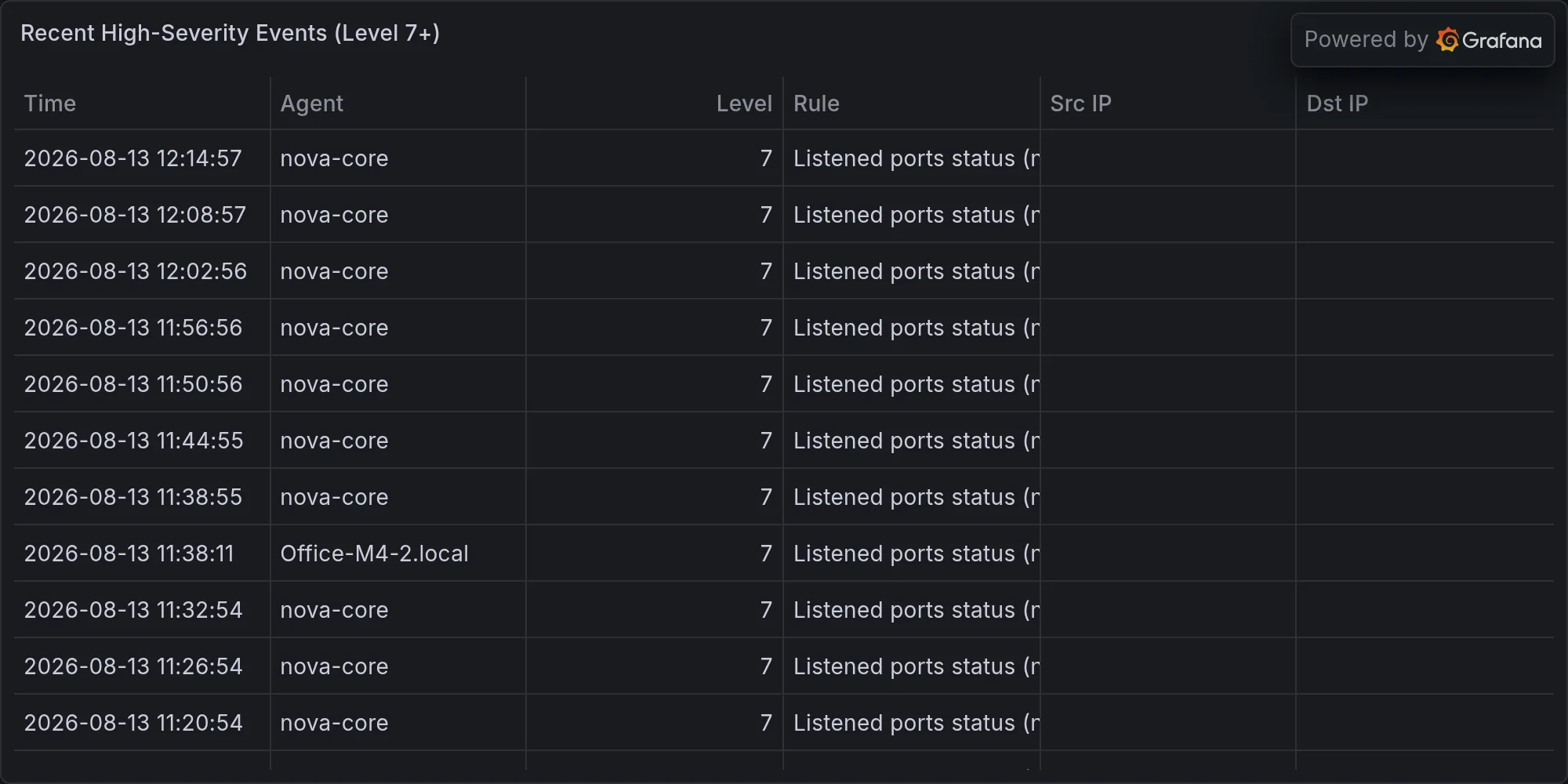
Recent high-severity events at publish time: